
Edit captions right in the player
Dear Webgate.io Community,
a typo in a caption, a misspelled name, a line that doesn't match the picture: these mistakes usually show up exactly when you're reviewing footage in the player. From now on, you can fix them right where you spot them, in the player's caption overlay.
Here's an example: a producer is reviewing the final cut of an episode with English subtitles together with the director. Twelve minutes in, she notices a typo. Instead of downloading the file, fixing it and uploading it again, she clicks into the caption, corrects the word and keeps watching. From then on, everyone on the project sees the corrected version.
How to edit captions in the player
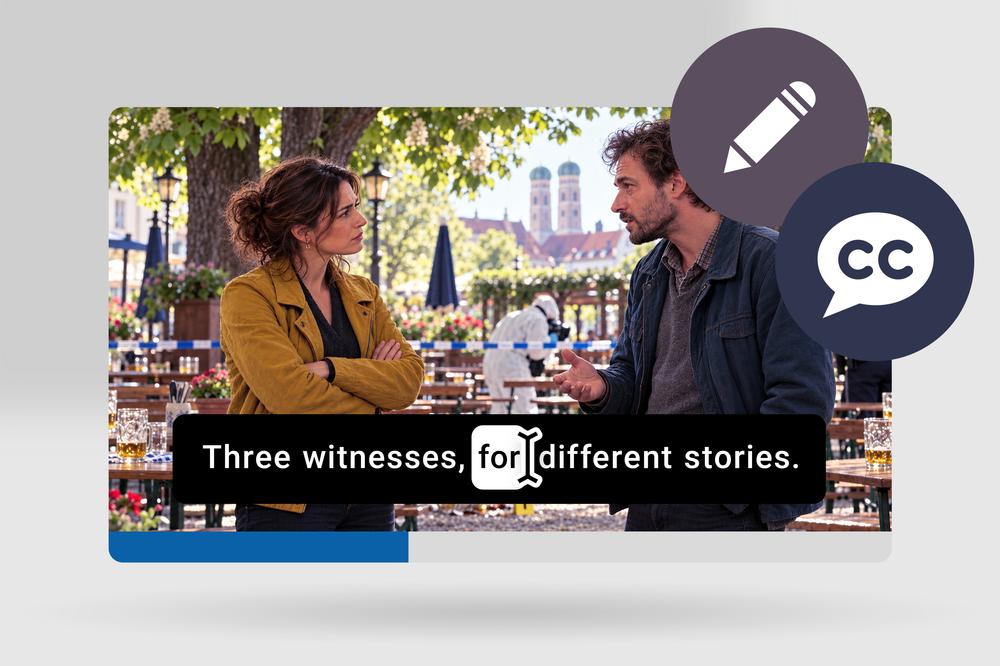
While a caption is on screen, simply click into the text. The overlay turns into an input field, and you edit the text as usual. Your change is saved as soon as you click away or press Ctrl+Enter. It goes straight into the caption file, without a detour through the caption editor. You can then download the corrected version as SRT or retrieve it via the API.
Only the caption you edit changes. Timecodes, all other captions and comments in the file stay exactly as they were. This works for captions in WebVTT and SRT format. If a caption contains formatting such as bold text, you'll see the formatting tags as plain text while editing. That way you can adjust them deliberately, and they're preserved when you save.
Available to admins, managers and collaborators
Anyone with the role admin, content manager or collaborator in the project can edit captions. For everyone else, the player stays the same: they see the captions but can't change them.
Give it a try the next time you review footage. We look forward to your feedback at help@webgate.io.
Best regards,
Your Webgate.io Team
Gepubliceerd op: 19 oktober 2026 07:15